> ## Documentation Index
> Fetch the complete documentation index at: https://www.helius.dev/docs/llms.txt
> Use this file to discover all available pages before exploring further.
# Quickstart
> Get started with Helius by creating a free account and making your first API call in seconds.
## Make your first API call
Sign up at the [Helius Dashboard](https://dashboard.helius.dev/signup). The free tier is plenty for prototyping.
Open the [**Get started**](https://dashboard.helius.dev/get-started) tab in your dashboard, select `getBalance` method and click **Send request**.
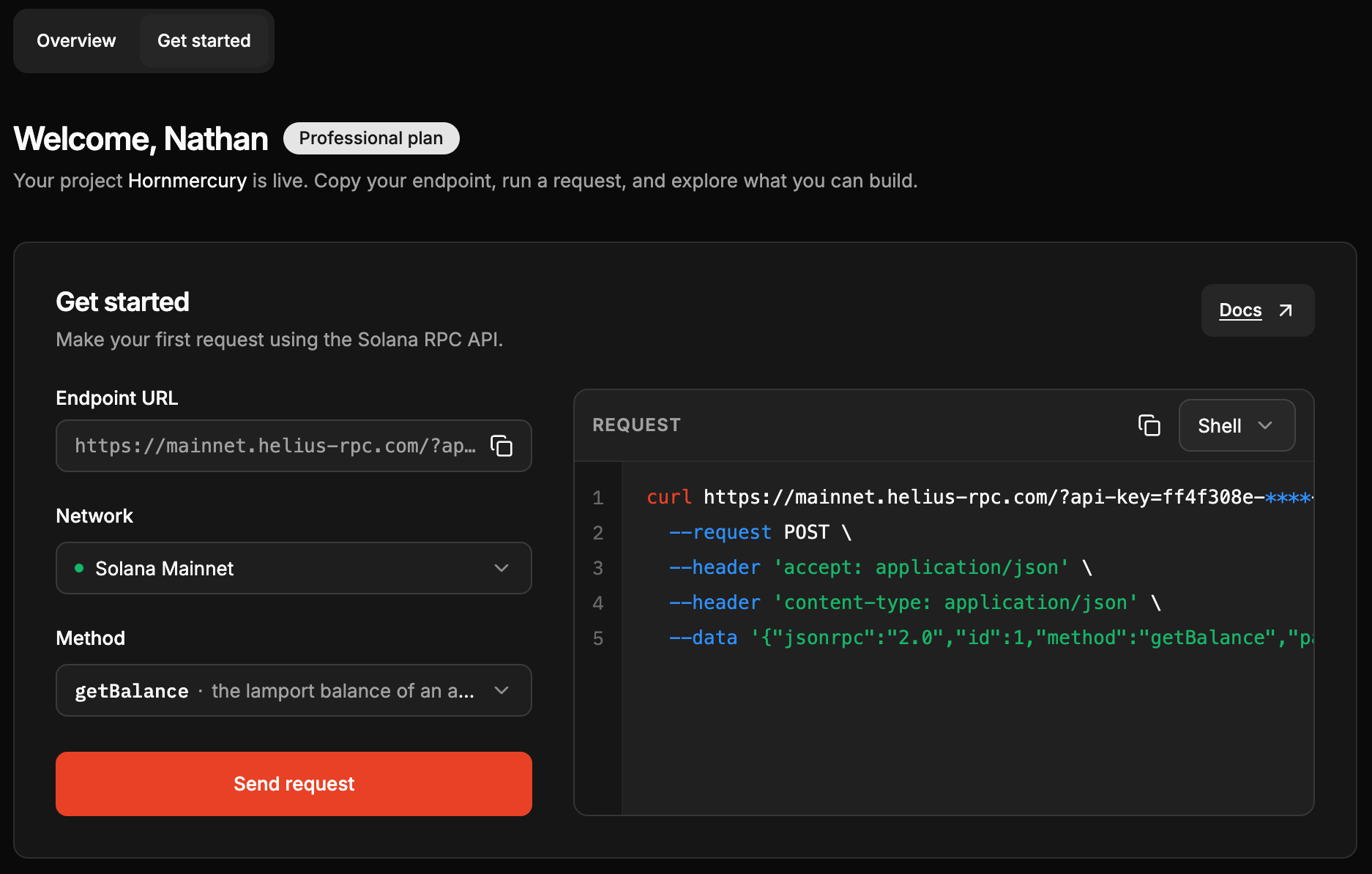 You just queried `getBalance` method to get the balance of the wallet address. You should see a response like this:
```json theme={"system"}
{
"jsonrpc": "2.0",
"result": {
"context": {
"slot": 434696579,
"apiVersion": "3.1.9"
},
"value": 1266028802962
},
"id": 1
}
```
Try other methods like `getTransactionsForAddress` to get the transaction history or `getAccountInfo` to get the account details.
## Next steps
You have data flowing. Pick your next move.
Add the Helius MCP server so your AI assistant builds and debugs with live Solana data.
Land a transaction on-chain with priority fees and direct routing to leaders.
Subscribe to real-time on-chain updates over gRPC or enhanced WebSockets.
Follow a self-contained track with copy-pasteable code you can run in minutes.
## Connect your AI coding tool
Connect the **[Helius MCP server](/docs/agents/mcp)** to your AI tool so it can build and debug with live Solana data (balances, asset metadata, parsed transactions, webhooks, and streaming) instead of guessing. Works with Claude Code, Claude Desktop, Cursor, VS Code, Windsurf, Codex, and any MCP-compatible tool.
Run the following command:
```bash theme={"system"}
claude mcp add helius npx helius-mcp@latest
```
Or add to your project's `.mcp.json`:
```json theme={"system"}
{
"mcpServers": {
"helius": {
"command": "npx",
"args": ["helius-mcp@latest"]
}
}
}
```
Verify with:
```bash theme={"system"}
claude mcp list
```
Want skills + MCP in one step? Install the [Helius plugin](/docs/agents/claude-code-plugin) instead. Run these as two separate commands:
```
/plugin marketplace add helius-labs/core-ai
```
```
/plugin install helius@helius-labs
```
Open **Settings > Developer > Edit Config** and add the server:
```json theme={"system"}
{
"mcpServers": {
"helius": {
"command": "npx",
"args": ["helius-mcp@latest"]
}
}
}
```
Restart Claude Desktop to apply.
Open the command palette (`Cmd/Ctrl + Shift + P`), search for **MCP: Add Server**, and enter:
* **Name:** `helius`
* **Command:** `npx helius-mcp@latest`
Or add to your project's `.cursor/mcp.json`:
```json theme={"system"}
{
"mcpServers": {
"helius": {
"command": "npx",
"args": ["helius-mcp@latest"]
}
}
}
```
Create a `.vscode/mcp.json` file in your project root:
```json theme={"system"}
{
"servers": {
"helius": {
"command": "npx",
"args": ["helius-mcp@latest"]
}
}
}
```
Requires the [GitHub Copilot](https://marketplace.visualstudio.com/items?itemName=GitHub.copilot) extension with MCP support enabled.
Open the command palette (`Cmd/Ctrl + Shift + P`), search for **Configure MCP Servers**, and add:
```json theme={"system"}
{
"mcpServers": {
"helius": {
"command": "npx",
"args": ["helius-mcp@latest"]
}
}
}
```
Run the following command:
```bash theme={"system"}
codex mcp add helius -- npx helius-mcp@latest
```
Or add to your `~/.codex/config.toml` (or `.codex/config.toml` for project-scoped):
```toml theme={"system"}
[mcp_servers.helius]
command = "npx"
args = ["helius-mcp@latest"]
```
Verify with:
```bash theme={"system"}
codex mcp list
```
## Build your first app
Each track is self-contained, with copy-pasteable code you can run in minutes.
**Mainnet.** Tokens, NFTs, and SOL via DAS, history, and a live WebSocket feed.
**Devnet.** Deploy a sample program through Helius RPC and invoke it with `sendTransaction`.
## Explore the platform
Connect the Helius MCP server and SDKs so your AI assistant builds on Solana with live data.
Browse every Helius endpoint: RPC, DAS, enhanced transactions, webhooks, and streaming.
Query tokens, NFTs, and compressed NFTs by owner, collection, or trait.
Stream live blockchain data with sub-second latency over gRPC or enhanced WebSockets.
You just queried `getBalance` method to get the balance of the wallet address. You should see a response like this:
```json theme={"system"}
{
"jsonrpc": "2.0",
"result": {
"context": {
"slot": 434696579,
"apiVersion": "3.1.9"
},
"value": 1266028802962
},
"id": 1
}
```
Try other methods like `getTransactionsForAddress` to get the transaction history or `getAccountInfo` to get the account details.
## Next steps
You have data flowing. Pick your next move.
Add the Helius MCP server so your AI assistant builds and debugs with live Solana data.
Land a transaction on-chain with priority fees and direct routing to leaders.
Subscribe to real-time on-chain updates over gRPC or enhanced WebSockets.
Follow a self-contained track with copy-pasteable code you can run in minutes.
## Connect your AI coding tool
Connect the **[Helius MCP server](/docs/agents/mcp)** to your AI tool so it can build and debug with live Solana data (balances, asset metadata, parsed transactions, webhooks, and streaming) instead of guessing. Works with Claude Code, Claude Desktop, Cursor, VS Code, Windsurf, Codex, and any MCP-compatible tool.
Run the following command:
```bash theme={"system"}
claude mcp add helius npx helius-mcp@latest
```
Or add to your project's `.mcp.json`:
```json theme={"system"}
{
"mcpServers": {
"helius": {
"command": "npx",
"args": ["helius-mcp@latest"]
}
}
}
```
Verify with:
```bash theme={"system"}
claude mcp list
```
Want skills + MCP in one step? Install the [Helius plugin](/docs/agents/claude-code-plugin) instead. Run these as two separate commands:
```
/plugin marketplace add helius-labs/core-ai
```
```
/plugin install helius@helius-labs
```
Open **Settings > Developer > Edit Config** and add the server:
```json theme={"system"}
{
"mcpServers": {
"helius": {
"command": "npx",
"args": ["helius-mcp@latest"]
}
}
}
```
Restart Claude Desktop to apply.
Open the command palette (`Cmd/Ctrl + Shift + P`), search for **MCP: Add Server**, and enter:
* **Name:** `helius`
* **Command:** `npx helius-mcp@latest`
Or add to your project's `.cursor/mcp.json`:
```json theme={"system"}
{
"mcpServers": {
"helius": {
"command": "npx",
"args": ["helius-mcp@latest"]
}
}
}
```
Create a `.vscode/mcp.json` file in your project root:
```json theme={"system"}
{
"servers": {
"helius": {
"command": "npx",
"args": ["helius-mcp@latest"]
}
}
}
```
Requires the [GitHub Copilot](https://marketplace.visualstudio.com/items?itemName=GitHub.copilot) extension with MCP support enabled.
Open the command palette (`Cmd/Ctrl + Shift + P`), search for **Configure MCP Servers**, and add:
```json theme={"system"}
{
"mcpServers": {
"helius": {
"command": "npx",
"args": ["helius-mcp@latest"]
}
}
}
```
Run the following command:
```bash theme={"system"}
codex mcp add helius -- npx helius-mcp@latest
```
Or add to your `~/.codex/config.toml` (or `.codex/config.toml` for project-scoped):
```toml theme={"system"}
[mcp_servers.helius]
command = "npx"
args = ["helius-mcp@latest"]
```
Verify with:
```bash theme={"system"}
codex mcp list
```
## Build your first app
Each track is self-contained, with copy-pasteable code you can run in minutes.
**Mainnet.** Tokens, NFTs, and SOL via DAS, history, and a live WebSocket feed.
**Devnet.** Deploy a sample program through Helius RPC and invoke it with `sendTransaction`.
## Explore the platform
Connect the Helius MCP server and SDKs so your AI assistant builds on Solana with live data.
Browse every Helius endpoint: RPC, DAS, enhanced transactions, webhooks, and streaming.
Query tokens, NFTs, and compressed NFTs by owner, collection, or trait.
Stream live blockchain data with sub-second latency over gRPC or enhanced WebSockets.